

The ATOMIC LAN is a 640-Mbps packet-switched LAN designed by ISI and CalTech. The ATOMIC project succeeded in implementing a LAN prototype, including host interfaces and switches. ATOMIC-2 is investigating how to use the ATOMIC LAN as a production network.
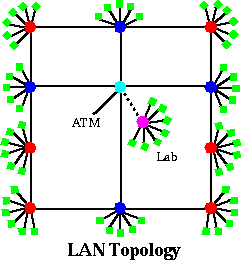
This topology is designed so that each user machine has at least two independent paths to the gateway (center, light blue). The wiring also maximizes the number of connected machines and minimizes the hopcount.
- Light blue: “gateway” to ATM
- Magenta: singly-connected Lab switch (can be isolated/dashed line)
- Red: doubly-connected host switches (“tie-links”)
- Blue: triply-connected host switches (“backbone”)
- Green: user and lab hosts (6*6 + 4*5 = 56 user hosts, 7 lab hosts)
ATOMIC was developed from Caltech’s MOSAIC mesh-connected supercomputer technology. Myrinet is a commercial version of ATOMIC is being produced by our friends at Myricom. ATOMIC-2 is a member of the ARC and SCAN ATM testbeds.
Going the last meter
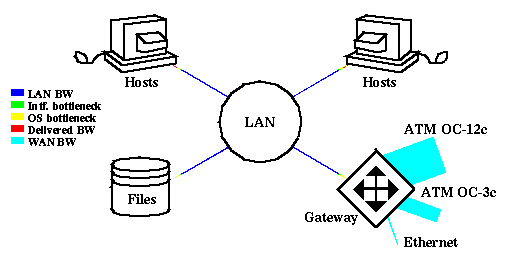
Before the ATOMIC LAN, the bottleneck was in the LAN. Host interfaces, file servers, and gateways could support a significant portion of the available LAN bandwidth (line widths are proportional to BW).
The presumed solution is to install a faster LAN, e.g., Fast-Ethernet, FDDI, ATM, or the ATOMIC LAN (again, line widths are proportional to BW):
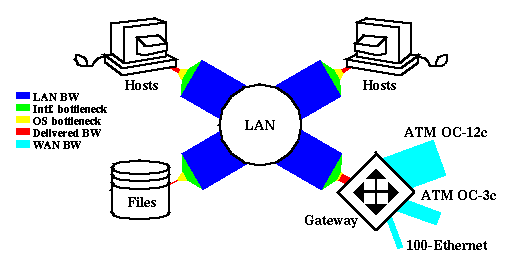
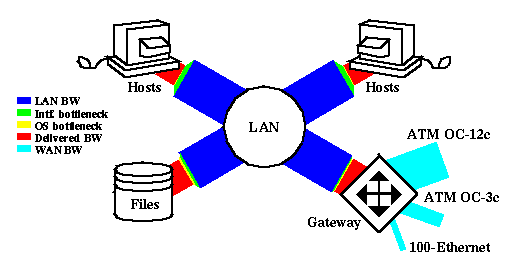
The problem is that LAN bandwidth gets you only so far. Interfaces have limitations, due to driver software and hardware design. OS interactions further limit available bandwidth at the application layer.
ATOMIC-2 is aimed at addressing these remaining limitations. In telephony, it is well-recognized that the majority of costs and complexity lie in the local loop, the last mile to the customer’s phone. In the ATOMIC-2 project, we are addressing the equivalent networking concept…
“Going the last meter”
Research topics
ATOMIC-ATM gateway and router design
High-speed file server
Fast security
Protocol performance, including PVM
Integrated services (QoS)
ATOMIC2 has been extended to support high-level integrated services, which are important for real-time protocols (e.g., RTP) and QoS reservation mechanisms (e.g., RSVP). This required determining its “implict” switch packet scheduling that uses round-robin arbitration on a per-packet level and extending it to support bandwidth per source related to ratio of packet sizes. This emulation allowed the system to emulate router queueing disciplines by inserting interval gaps in packet emission, where the available BW is determined by gaps in other traffic and we reserve BW by regulating gaps in all traffic. It also involves modifying packet sizes via MTU discovery and leveraging centralized intra-LAN BW reservation.
ATOMIC link-layer multicast
Myricom only supports link-layer serial broadcast – there is no (switch-level) hardware multicast support. The source unicasts a separate copy of the multicast message to every node in the LAN, which leads to high multicast latency. Multicast messages are filtered by IP on each host, which wastes SBus bandwidth.
We developed an alternate approach for tree-based multicast involving other receivers to help distribute messages. It saves SBus bandwidth by only allowing the copy of multicast message reach a destination node in the multicast group.
This research addresses how to efficiently implement multicast services in cut-through switching networks, in the absence of hardware multicast support at intermediate switches. Minimum-time multicast algorithms are presented for direct networks including general n-dimensional meshes and hypercubes and indirect networks including multistage networks supporting turnaround routing. The results of implementations on a 64-node IBM SP-1 show that the proposed algorithm significantly outperforms the application-level broadcast primitives provided by currently existing collective communication libraries including the public domain MPI.
Papers:
- `Unicast-Based Multicast Communication in Wormhole-Routed Networks”, (P. K. McKinley, H. Xu, A. H. Esfahanian, and L. M. Ni), IEEE Transactions on Parallel and Distributed Systems , vol. 5, no. 12, pp. 1252-1265, Dec., 1994.
- “Optimal Software Multicast in Wormhole-Routed Multistage Networks”, (H. Xu, Y. D. Gui, and L. M. Ni), Proceedings of Supercomputing’94 , pp. 703–712, Nov., 1994.
- “A Scalable Multicast Service in 2D Mesh Networks”, (H. Xu, P. K. McKinley, and L. M. Ni), Frontiers’92: The 4th Symposium on the Frontiers of Massively Parallel Computation , pp.156–163, Oct. 1992.
People
Joe Touch – PI
Ted Faber, Anne Hutton – staff
Wei Yue – student
Project alumnae:
Hong Xu, Annette DeSchon – staff
Tom Fisher, Avneesh Sachdev, Nehal Bhau, Darshan Jani – students
Publications
Internet RFC on MD5 Performance
J. Touch
“ATOMIC-2: Production Use of a Gigabit LAN”
J. Touch, A. DeSchon, H. Xu, T. Faber, T. Fisher, A. Sachdev
In the Gigabit Networking Workshop ’95 at Infocom ’95.Abstract
Electronic slides (HTML format)
Slides in compressed PostScript
“Improving PVM Performance Using the ATOMIC User-Level Protocol”
H. Xu and T. Fisher
In the High-Speed Network Computing Workshop ’95 at IPPS ’95.Workshop paper in compressed PostScript
“Performance Analysis of MD5”
J. Touch
In Proc. Sigcomm ’95, Boston, pp. 77-86.Abstract (available soon)
Conference paper in compressed PostScript
Slides in compressed PostScript
“Report and Discussion on the IEEE ComSoc TCGN Gigabit Networking Workshop 1995”
J. Sterbenz, H. Schulzrinne, J. Touch
In IEEE Network, July 1995, pp. 9-21.Journal paper in HTML format
“ATOMIC-2: Going the Last Meter for Gigabit LANs”
J. Touch, T. Faber, A. DeSchon, A. Sachdev
In the Gigabit Networking Workshop ’96 at Infocom ’96.Abstract
“Experience with a Production Gigabit LAN”
J. Touch, T. Faber, D. Jani
In the Gigabit Networking Workshop ’97 at Infocom ’97.Abstract
“Optimizing Throughput in a Workstation-Based Network File System over a High Bandwidth Local Area Network”
T. Faber
In Operating Systems Review vol. 32, no. 1, pp. 29-40, (January 1998)Postscript
“Dynamic Host Routing for Production Use of Developmental Networks”
J. Touch and T. Faber
In Proceedings of the IEEE International Conference on Network Protocols, Atlanta, Ga, October 28 – 31, 1997HTML
Postscript
“Avoiding the TCP TIME_WAIT state at Busy Servers”
T. Faber, J. Touch, and W. Yue
Internet Draft
“High-performance IP Forwarding Using Host Interface Peering”
Joe Touch, Anne Hutton, Simon Walton
To appear in Proceedings of the IEEE LANMAN Workshop ’98
Tools
In-kernel device driver patch
A kernel patch to move the Myricom loadable device driver into the SunOS 4.1.3 kernel, to run a workstation with Myrinet as the primary connection and using network-mounted file systems. Scripts make minor kernel source changes to incorporate the device driver, and configure system files to do the boot. Comments on or problems with the patch should be directed to Ted Faber
Optimized MD5 Code
An optimized version of the MD5 authentication algorithm, which runs up to 50% faster than the reference code on little-endian architectures, and up to 15% faster than the reference code on big-endian architectures.
We also have assembler tuned for the Pentium under FreeBSD.
ATOMIC Transport Protocol
ATP provides sequenced, reliable data delivery over user-level Myrinet ATOMIC API. ATP is used to speed PVM (Parallel Data Transfer) data transfer over the ATOMIC LAN.
“BLAST” test code
Similar to the TTCP and NETPERF bandwidth measurement tools, blast was developed at ISI, and includes additional options for UDP pacing and buffer alignment via command-line options.
bsdATM – FreeBSD Adaptec PCI ATM NIC driver for the 590x series
Working with the ATOMIC-2 project, Chuck Cranor of WUSTL has recently added support for the Adaptec series of 155Mbps PCI ATM cards to his Efficient driver. The driver also supports OpenBSD and NetBSD. The driver (containing both adaptec and efficient support) can be obtained from here. For further information contact: Chuck Cranor chuck@ccrc.wustl.edu, Anne Hutton hutton@isi.edu
Measurements
fbsdMyri 1.1 – FreeBSD Myrinet PCI Driver
A FreeBSD driver for the Myricom Myrinet PCI host interface. Version 1.1 of the driver can be obtained from here. For further information contact: The ATOMIC2 Project atomic-2@isi.edu, Anne Hutton hutton@isi.edu
Myrinet Measurements and Technology Comparisons
fbsdmyripeer 1.0 – Peer DMA for the FreeBSD Myrinet PCI Driver
These patches can be applied to the driver above to build a version capable of Peer DMA. Version 1.0 of the patches can be obtained from here.
See the benefits of Peer DMA
Benefits of Host Based Forwarding USing Peer DMA
NFS ping program to sample server load via NFS noops
The nfs_ping program to ping an NFS server with NFS snoops to estimate server load. Source code (in C) is available as gnuzipped tar. Ted Faber (faber@isi.edu) maintains it.
Avoiding TIME_WAIT State at busy server
Software packages
See README file for information about the patch itself, or,
See our draft for detailed description.
IP Authentication Header kernel patches
Patches to test the performance of various algorithms, and parts of AH processing (header insertion/deletion, data touching, etc.)
See the README for information on the patch itself.
Support
ATOMIC-2 is supported by the Defense Advanced Research Projects Agency (DARPA):
- This work is supported by the Defense Advanced Research Projects Agency through Ft. Huachuca contract #DABT63-93-C-0062 entitled “Netstation Architecture and Advanced Atomic Network”. The views and conclusions contained in this document are those of the authors and should not be interpreted as representing the official policies, either expressed or implied, of the Department of the Army, the Advanced Research Projects Agency, or the U.S. Government.
We receive additional support from ARC and SCAN, a LA-area ATM testbed:
- Information on ISI’s role in ARC/SCAN
- Calren’s ARC Consortia (providing testbed connections to other sites) (DEPRECATED)
- >GTE’s SCAN Project (providing ATM OC-3c connectivity to ARC), originally at HMC (DEPRECATED)