Users can query the web using the Query Tool window as follows:
- Type in the search strings (you can use AND or OR between words).
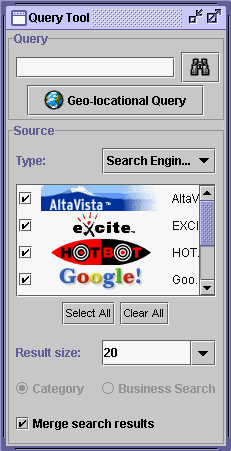
- Select the type of information sources you want to search (click on the combo-box to
browse and select available information sources). Following types of information sources
are available:
Search Engines: general key-word based Web search
engines (e.g. AltaVista, Excite, HOTBOT, Google, GoNetwork, snap.com, AllTheWeb)
Yellow Pages: search on on-line yellow pages (e.g. GTE SuperPages)
Web Directory: search on categorized Web documents (e.g. Yahoo)
Video Search: search on video news clips (e.g. CNN, MSNBC, ABCNews)
Meta Search: meta search engines that return combined results from
multiple search engines (e.g. ProFusion, MetaCrawler)
Must Web: Multilingual Information Retrieval, Summarization, and
Machine Translation System (Web search: e.g. AltaVista, Excite, etc.)
Must News: Multilingual Information Retrieval, Summarization, and
Machine Translation System (search on international news articles: e.g. Indonesia &
Malaysia news, Kompas online, Yahoo news, etc.)
Special Search: domain-specific search engines (e.g. MEMS
clearinghouse)
DASHER Database Search: search on EETimes technical news articles that
are indexed and stored in a database
- Select the information sources to be queried (click on a check box to toggle on or off
the engines, press 'Select All' button for selecting all the information sources in the
group, and press 'Clear All' button to deselect all the information sources).
- Input the desired result size, that is, the maximum number of documents returned by each
search engine.
- Mark if the search results obtained from each search engine should be merged or not into
one bigger result list.
- Click on the binocular button (
 ) to execute the search.
- A Document Analysis window will popup with the search results. You can then execute
analysis services on these documents or transfer them to the Category Editor window.
Show me (general Web-page search).
To perform a yellowpage search, you have to specify the geo-locational information such
as City and State by using the Geo-locational Query Builder that can be
brought by clicking on the Geo-locational Query (  ) button. You can perform either a
category or business name search.
) button. You can perform either a
category or business name search.
Show me (on-line yellowpage search).
The steps to search for video clips are same as the general Web-page search. At the
video document list generated as the result of a search, you can double click on the
closed-caption icon (  ) to see the script text of the clip or the film icon
(
) to see the script text of the clip or the film icon
(  ) to play the video clip.
Show me (video-clip search).
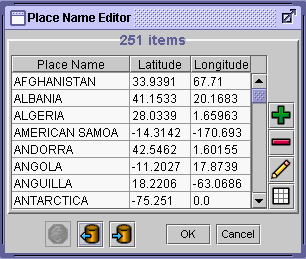
Click on the edit button located on the Information Manager menu bar.
Then select edit place name list. You can then import the place names
from the default map manager ( )
or from a file (  ).
).
The Place Name editor lets you add (  ), remove (
  ), edit (
  ) and clear (
  ) place names as appropriate. When done, you have the option
to export the current list of place names to a file (
) place names as appropriate. When done, you have the option
to export the current list of place names to a file (  ). This is very useful
specially if you plan on sharing the list with other users
). This is very useful
specially if you plan on sharing the list with other users
Show me.
You can switch over to another view by clicking on the title bar of the desired window.
When there are many windows displayed on the desktop, it may be easier to switch over to a
window by choosing its title from the Views menu in the main menu bar.You
can also browse through multiple windows sequentially by clicking on Previous View
/ Next View in the Views menu or 
 buttons
at the bottom-right corner of the desktop.
buttons
at the bottom-right corner of the desktop.
Show me.
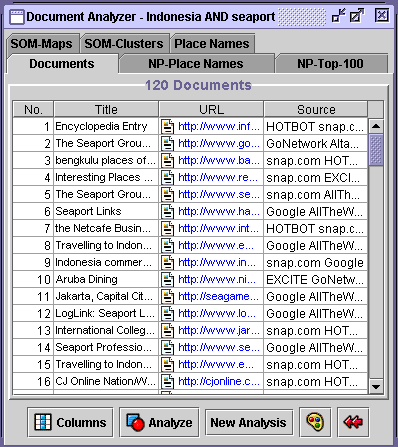
The document list in a document analyzer window shows document properties such as the
title, URL, summary, rank. You can dynamically add or remove document properties to or
from the table by using the Property Selection tool which can be brought
up by clicking on the Columns (  ) button at the bottom of the document list.
By single clicking on a title field, you can see the summary text of the document
displayed on a yellow window. The summary window will disappeared when you click on
anywhere outside that window. You can double-click on an URL field to connect to the Web
page and see the content using a Web browser.
Show me (Document List).
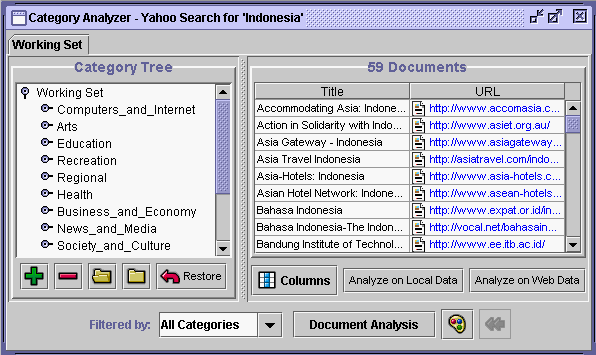
The Working Set Explorer is a combination between the Category
Tree and Document List the that shows both of the category
structure and the flat list of documents classified in the categories. By using the Working
Set Explorer, you can perform pruning and filtering operations to narrow down to
a specific set of documents.
The result of the Web directory or yellowpage search will be visualized in a Working
Set Explorer.
Show me (Working Set Explorer).
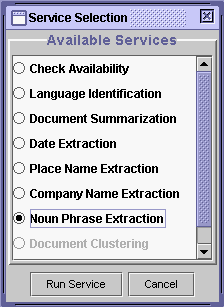
You can run one of the available document analysis service by clicking on the Analyze
(  ) button at the bottom of
the document list. It will bring out the Service Selection dialog and you
can choose one the services listed and press Run Service button to
execute the service.
) button at the bottom of
the document list. It will bring out the Service Selection dialog and you
can choose one the services listed and press Run Service button to
execute the service.
Show me.
Following eight analysis services are currently available: Check Availability,
Language Identification, Document Summarization, Date
Extraction, Place Name Extraction, Company Name
Extraction, Noun Phrase Extraction and Document
Clustering. See below. The Document Clustering service will be
available after executing the Noun Phrase Extraction service.
By using this service, you can check the availability of the Web documents collected.
The Information manager collects and keeps only the meta information (title, URL, summary,
etc.) of a document and its content cannot be accessed by the Information manager if the
actual document has been removed or the Web connection to the document is temporarily
broken. This service checks availability of each of the documents in the collection and
adds the Availability property (Available or Unavailable)
to the table.
Show me.
You can use this service to identify the language of each document in the collection.
As the result, it will add the Language property field to the table. The
language name (blank for unknown languages) of each document will be shown at the field.
Show me.
This service generates summary of each document content and add the Summary
property field to the document table. If there already exist the summary properties in the
collection (such as the summaries extracted from the Web search engines), they will be
overwritten by the new summaries.
Show me.
This service extracts date information (Earliest Date, Latest
Date, Modification Date, and Expiration Date),
of each document in the collection. Earliest Date (Latest Date)
is the earliest (latest) date among the dates mentioned in the document.
Modification Date indicates the last modification date of the document. Expiration
Date is the date until when the content of a time-sensitive document will be
valid. Some of the date information of a document may not be available depending on its
content and meta-data information.
Show me.
By using this service you can classify the documents based on the place names mentioned
in their contents.You have to load a set of place names to be used for the classification
by using the place name editor (see Beginner Level Answer 2 for
details). You can locate the result (the place name-based document clusters) on the
GeoWorlds map by selecting place nodes in the tree (selecting the root or not selecting
any places for all places) and pressing the Locate documents on the map (
) button.

Show me.
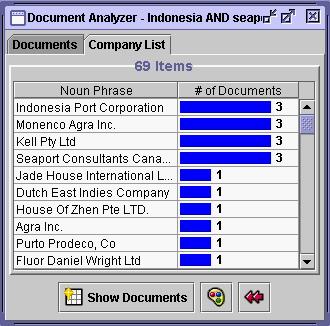
You can extract company names from the document collection and classify the documents
based on the company names extracted. The result view of this service will display a
histogram that shows the distribution of the documents over the company names. By
double-clicking on a histogram or highlighting a row and pressing the Show Documents (  ) button, you can see the
list of documents that mention the company name. You can also copy and paste company names
and their documents from the histogram list to a category editor.
) button, you can see the
list of documents that mention the company name. You can also copy and paste company names
and their documents from the histogram list to a category editor.
Show me.
You can extract meaningful noun phrased from the document collection and classify the
documents based on the noun phrases extracted. This service also performs a place
names-based document classification. When you run this service, it will ask you to select
one of the predefined regions. The place names to be used by this service will be
automatically loaded based on the region you selected. You can choose Default
for using default set of place names by the service. As the result, the service will
generate a noun-phrase list and a place name list. The format of the noun-phrase list is
same as the Company name extraction result and the
format of the place name list is same as the Place name extraction
result.
Show me.
The documents can be clustered based on the content similarity using the document
clustering service. To use this service the document analyzer should have the noun phrase
list generated by the Noun phrase extraction service
(the Document clustering service uses this information for determining the similarity).
The service returns two results: SOM-Clusters and SOM-Maps.
The SOM-Clusters panel shows the hierarchical document classification
structure (category names, sub and super-categories, and documents classified under each
category). You can press Draw Clustering Map button to see the graphical
presentation of the cluster regions. By clicking on a region on the map, you can see
either the map of sub-categories of the region or the list of documents classified under
the category. The SOM-Maps tab shows more detail information about each
region in the clustering map. It show the map hierarchy, documents classified in each
region, and a set of noun phrases used to characterize the region.
Show me.
The Category Editor provides editing functions for organizing a
user-defined category structure and collecting/classifying relevant documents under the
categories. The Document Analyzer does not provide any editing function
but you can run various document analysis services and visualize the document collections
in multiple ways. You can take a snapshot of a document organization from a Category
Editor and bring it into a Document Analyzer for further
analyses and visualizations by selecting categories and pressing the Analyze ( ) button from the Category
Editor.
Multiple tabs (Category Editors) in the Category Editor window may
contain different document collections. However, a Document Analyzer
window contains a single document collection and each tab shows different visualization or
an analysis result of the document collection.
Please see the Beginner Level Answer 10 for more detail about Category
Editor functions and Beginner Level Answer 3 and 6
for viewing documents and running analysis services in a Document Analyzer.

To copy documents or categories from the Document Analyzer to the Category
Editor, select documents or categories you want to copy (Ctrl +
Left-Mouse-Button for multiple selection) from a panel in the Document
Analyzer window, choose Export to local clipboard under Clipboard
menu (or press Ctrl+C), select the destination category in the Category
Editor, and choose Import from local clipboard menu (or press Ctrl+V).
You can generate a Document Analyzer from a Category Editor
for document analyses by selecting categories and(or) documents from the Category
Editor and press the Analyze ( ) button.
Show me.
By using the Local clipboard you can exchange data between different views (windows) in
the document manager. Please see Beginner Level Answer 8 for more
details.
A Clipbook is a collection of multiple Clipboards. The document manager in GeoWorlds
provides a topic oriented and distributed clipbook system by which you can organize the
clipboards in a topic hierarchy and share data with remote users in the GeoWorlds
sessions. You can use clipbooks by selecting Export to clipbook / Import
from clipbook items in the Clipboard menu. Please see Advanced Level Answer 2 for
manipulating clipbooks.
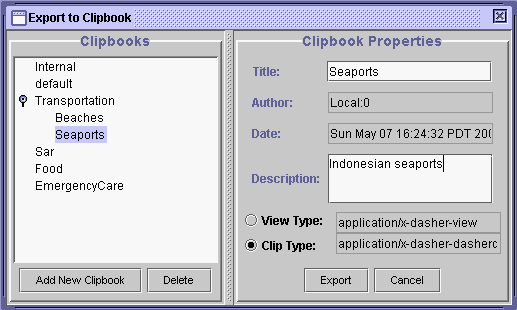
You can exchange data through a clipbook in three different granularity:
Partial data in a panel : partial documents or categories in a panel; to export,
select the part of the panel you wan to export and choose the data type as Clip
Type in the clipbook dialog-box
Panel data: entire data in a panel such as a document list and a category tree;
to export a panel data, select the panel you want to export (with clearing the selections
inside the panel) and choose the data type as Clip Type in the clipbook
dialog-box
View data: multiple panel data in a view window; to export an entire view data,
select the view window you wan to export and choose data type as View Type
in the clipbook dialog-box
When you (or other users) import a clipbook data, the Clip Type data
will be added under the currently selected node in a Category Editor or
included in a new panel (named Clip) in the Category Editor
window if there is no selected node. View Type data will be displayed in
a separate window.
Show me.
The Category Editor provides a multi-tabbed GUI window to manipulate and organize
documents in a hierarchical fashion. See the detailed functionality described below.
Add a Category Editor tab to the Category Editors window.
Show me!
Removes a Category Editor tab from the Category Editors window.
Show me!
Creates an new category folder ( ). To rename a category, click on the category name, then
click-and-hold until it becomes editable.
). To rename a category, click on the category name, then
click-and-hold until it becomes editable.
Show me!
The category editor provides a variety of editing functions:





 ): Delete the selected category.
 ): Undo the
last editing function.
): Undo the
last editing function. ): Undo the
last undo command.
): Undo the
last undo command. ): Delete the
selected category, and place in it in the clipboard.
): Delete the
selected category, and place in it in the clipboard. ): Place the
selected category in the clipboard.
): Place the
selected category in the clipboard. ): Create
a copy of the category in the clipboard, and insert it under the selected category.
): Create
a copy of the category in the clipboard, and insert it under the selected category. ): Create a link to the category in the clipboard, and
insert it under the selected category.
): Create a link to the category in the clipboard, and
insert it under the selected category. ): expand all the category nodes.
 ): collapse on the category nodes.
 ).
). ). Also, see Ignore same domain URLs option.
 ). Only the html text portion of
the document is copied, not the linked pages it points to.
). Only the html text portion of
the document is copied, not the linked pages it points to.