GeoWorlds Project, Distributed Scalable Systems Division
University of Southern California Information Sciences Institute




|
GeoWorlds Project, Distributed Scalable Systems Division
|
|
The Service Scripting Tool allows application developers and end users to combine multiple services together to perform complex information analyses. This tool provides a GUI for visually composing a service script by means of a data flow diagram. During the service scripting time, this tool also helps users select semantically interoperable services. A semantically assured service script developed by this tool can be dynamically instantiated and run based on available local resources. Service components to be combined within a script are information gathering, analysis or visualization services, or software gauges that are compatible with the GeoWorlds testbed system. A script can be run only when the GeoWorlds system is up and running. 1. Start a scripting sessionUsers can start a scripting session by selecting the service composer button ( The upper part (Script Canvas) of the service composer displays the currently included components and connections between them. The lower part shows the ontology hierarchies and a selected schema of available services that are composable with the ones already included in the script. 2 Compose a service script2.1 Add a service to the script To add a service to a script, users can select one of the candidate services displayed at the service
palettes and press the Add a Component (
If the service composer detects the insufficient data condition where the predecessor components cannot provide all the required data for the selected service, the composer automatically searches for and insert appropriate user input services which can generate the required data by interacting with the user. The following picture shows that when the user selects the Search Engine Wrapper service which retrieves Web documents from multiple search engines, the composer automatically inserts the Search Engine Query Tool which gets a query string , search engine selections, and other search options from the user and passes them to the Search Engine Wrapper component.
Users can add service schemas(
2.2 Match interoperable servicesIf the user wants to combine other analytic and/or visual services with some services in the script, they can request the service composer to match interoperable services by selecting the source components from the script and press the Match
( When the user selects and adds the interoperable services to the script, the service composer automatically resolves some semantic and syntactic mismatches by inserting intermediate components that can transform one semantics to another or one syntactic representation to another. For example, the following script shows that the service composer inserted a semantic converter which flattens down the acyclic document organization structure which is the result of the search engine wrapper service to a flat list of documents which is the structure semantics the noun phrase extraction service can accept. Also, the composer added a syntactic converter between the noun phrase extraction service and the visualization service to convert the data representation of the noun phrase extraction service into the representation that can be accepted by the visualization service.
A service added to the script can be removed by pressing the remove (
2.3 Abstract component instantiationAs explained at Section 1.2.1, a service script can contain abstract(schema) components. For this case, the abstract components need to be instantiated before running the script. If the user presses the Match button on an abstract component, the service composer will show all
the available instances of the service type within Instances palette. To instantiate the abstract component, the user needs to select one of the instances and press the Instantiate (
3 Execute a script A script can be run by pressing the Execute (
During run-time, each analytic and converter service will show the status of its process, and the overall progress and status messages generated from the services are displayed at the bottom of the script canvas. The results of a script execution will be displayed on the Information Manger frame by using the viewers specified in the script. The user can stop the execution of a script by pressing the Stop button. Then, each service in the script will cancel its process and the composition tool will show the service palettes and service description panel again. 3.1 Modify and rerun a scriptA script can be modified and rerun. When the script execution is successfully finished, the Edit (
When the modified script is run, unaffected services will not be rerun and their previous results will be reused if the newly added services require them. To change the user input data, the user need to double-click on the corresponding component explicitly. 3.2 Initialize and rerun a scriptA script ran previously can be initialized by pressing the Initialize (
3.3 Rerun a visual serviceIndividual visual services can be rerun by double-clicking on the corresponding nodes in the script. If the visualization result is already displayed in the Information Manger, it will be moved to front. Otherwise (when the previously displayed result has been closed), the result will be redisplayed in the Information Manager. 4 Save and load a scriptA script composed can be saved to a file and loaded back to be executed later. To save a script, press
the Save (
Users can exchange these XML script files with other users who are working on the similar information management tasks to collaboratively and incrementally populate and refine their information spaces.
|
|
|
 ) at the bottom of the desktop or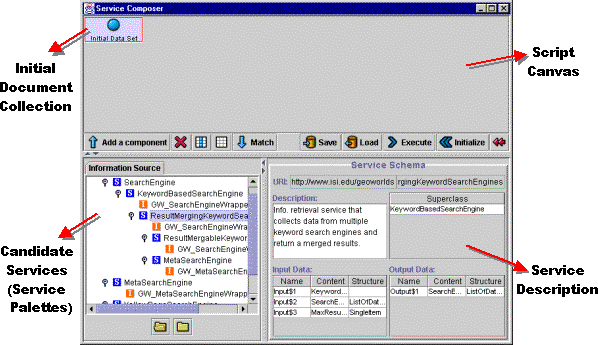
 ) button. Then, the new service will be appeared within the script canvas with drawing the connection between its predecessor components (e.g. the Initial Document Collection if the user selects an analytic or visual service at the initial stage).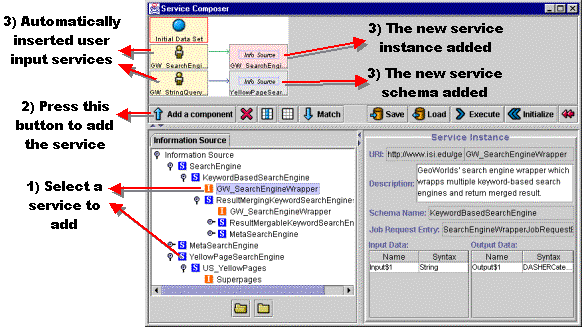
 ) instead of a service instances(
 ) to the script. A service schemas can be instantiated later by choosing a particular instance. Please see Section 1.2.3 for the description about the instantiation steps.
 ) button. Then the service composer will show all the interoperable services in the service
palettes.
) button. Then the service composer will show all the interoperable services in the service
palettes.
 ) button. When a service is removed, all the user input, converter and succeeding services that are connected to the component to be removed will be also removed from the script.
 ) button. Then, all the user input services included in the script will be displayed within the Information Manger frame. Whenever the user finishes editing input data for an input service, its subsequent services will be automatically executed. By double-clicking on a user input service, the user can prepare for input
data prior to execute the entire script.
) button. Then, all the user input services included in the script will be displayed within the Information Manger frame. Whenever the user finishes editing input data for an input service, its subsequent services will be automatically executed. By double-clicking on a user input service, the user can prepare for input
data prior to execute the entire script.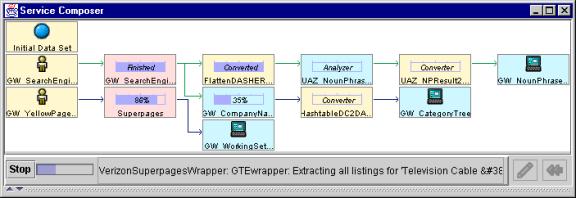
 ) button will be enabled. By pressing this button, the service
palettes and the service description parts can be brought again, and users can repeat the same composition steps described at the previous sections.
) button will be enabled. By pressing this button, the service
palettes and the service description parts can be brought again, and users can repeat the same composition steps described at the previous sections. ) button. Then, the status of the services in the script will be initialized. If the script is rerun after the initialization, all the analytic and visual services will be executed again and regenerate their results. However, the input services will not be rerun and provide previously edited data to the succeeding
services. The user needs to explicitly rerun each of the input services to modify the input data.
) button. Then, the status of the services in the script will be initialized. If the script is rerun after the initialization, all the analytic and visual services will be executed again and regenerate their results. However, the input services will not be rerun and provide previously edited data to the succeeding
services. The user needs to explicitly rerun each of the input services to modify the input data. ) button and specify the file name. The script will be saved as an XML file to the script repository (GeoWorlds/Client/Scripts). An XML file of an information management script can be loaded back to the composer by pressing
the
) button and specify the file name. The script will be saved as an XML file to the script repository (GeoWorlds/Client/Scripts). An XML file of an information management script can be loaded back to the composer by pressing
the  ) button. The loaded script can be rerun to regenerate or refresh the information space data.